
Thank you for being involved with the Registry Process!
We’re building this Registry together to support and protect our community.
Please note: For those of you that do not have a team or a list to upload click here to submit your information.
Step 1: Download Your List from MPG (Get the file)
You are doing this inside your MPG Back Office.
- Log in to your MPG Back Office.
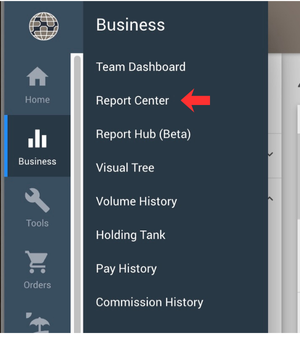
- On the left side, click Business.
- Click Report Center.
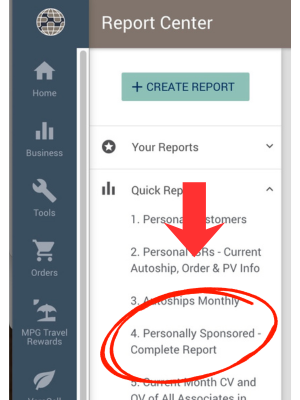
- Click Quick Reports.
- Click Report #4: Personally Sponsored Complete Report.
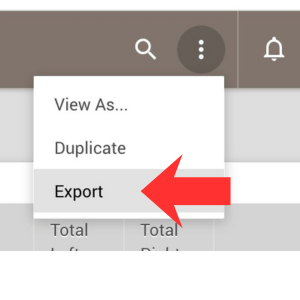
- In the top-right corner, click the three dots (⋮).
- Click Export.
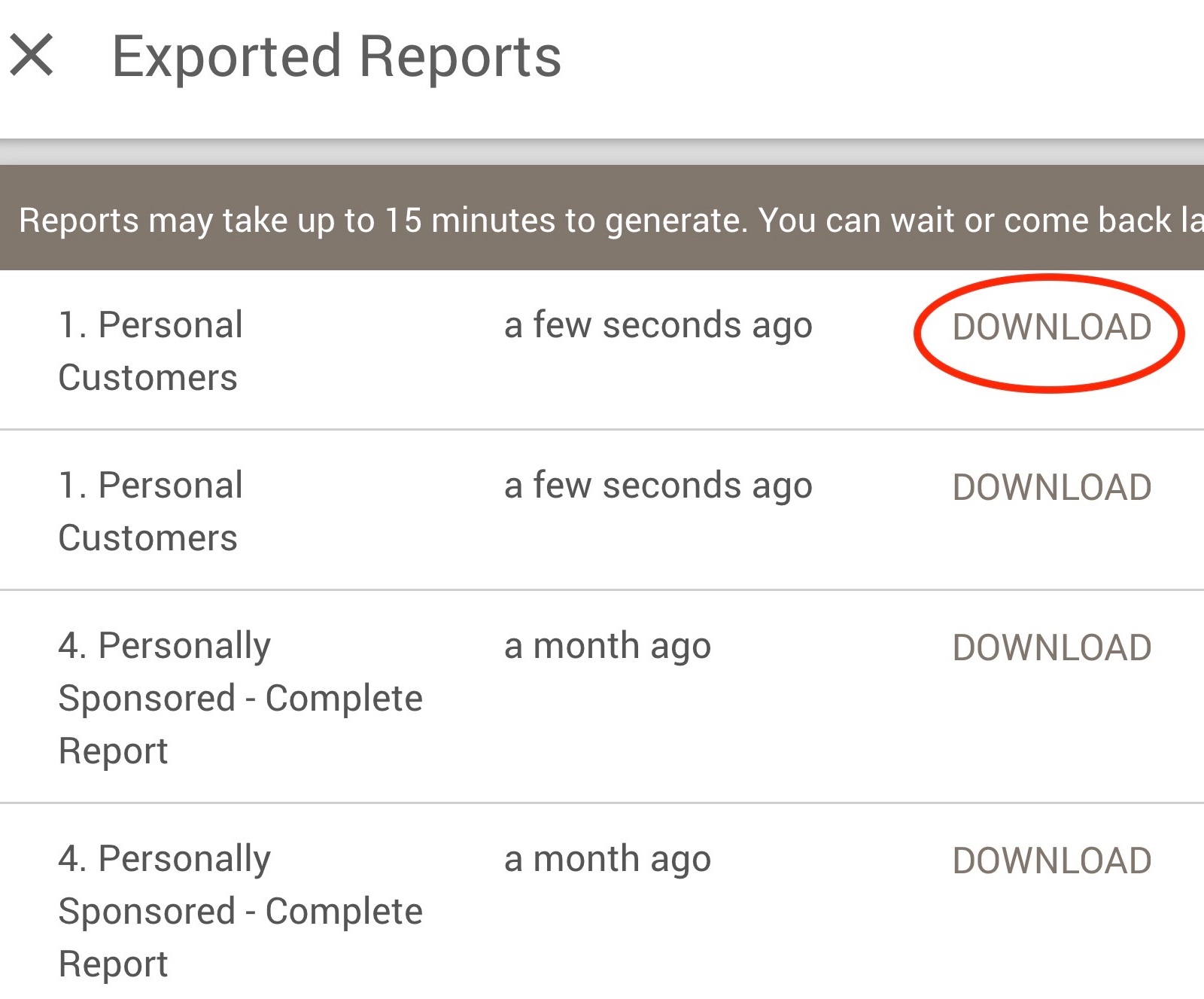
- Wait for the report to generate
- Your computer will save a CSV file to your Downloads folder.
Quick Tip: The file usually ends in .csv and is in Downloads.
Step 2: Upload Your CSV to Action Is The Cure (Send It Here)
You are doing this on the AITC Registry page.
- Scroll to the Upload File section below.
- Click Choose File (or Browse).
- Pick the CSV file from your Downloads folder.
- Click Upload / Submit.
- Look for the message that says your file was received.
✅ That’s it — uploading your list helps make sure no one on your team is left “orphaned” without support.
If you would like a full instructional guide click here.
If you need assistance, please contact us.